ShotTrainer
Camera-based aim tracking and shot analysis for shooting practice.
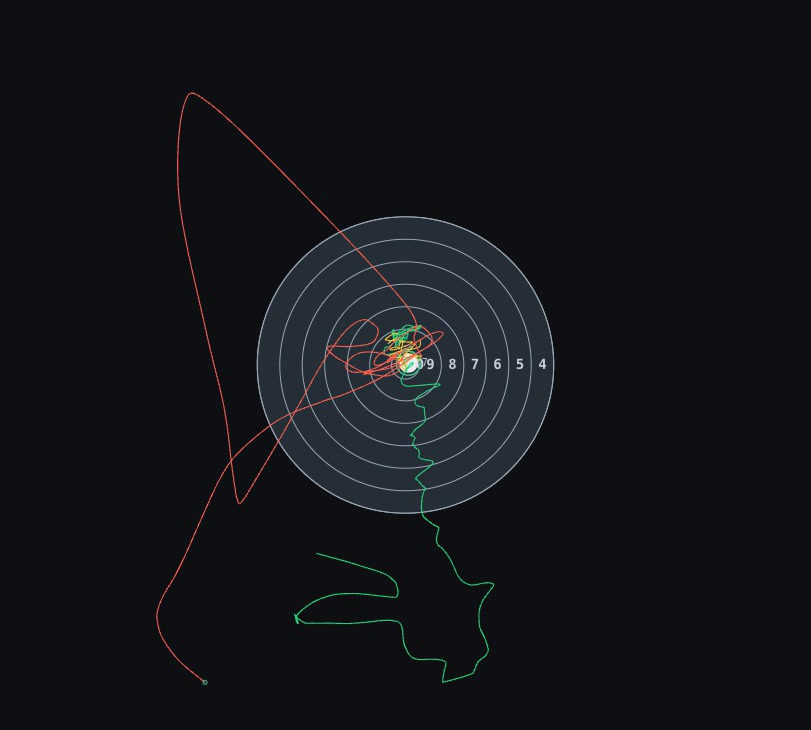
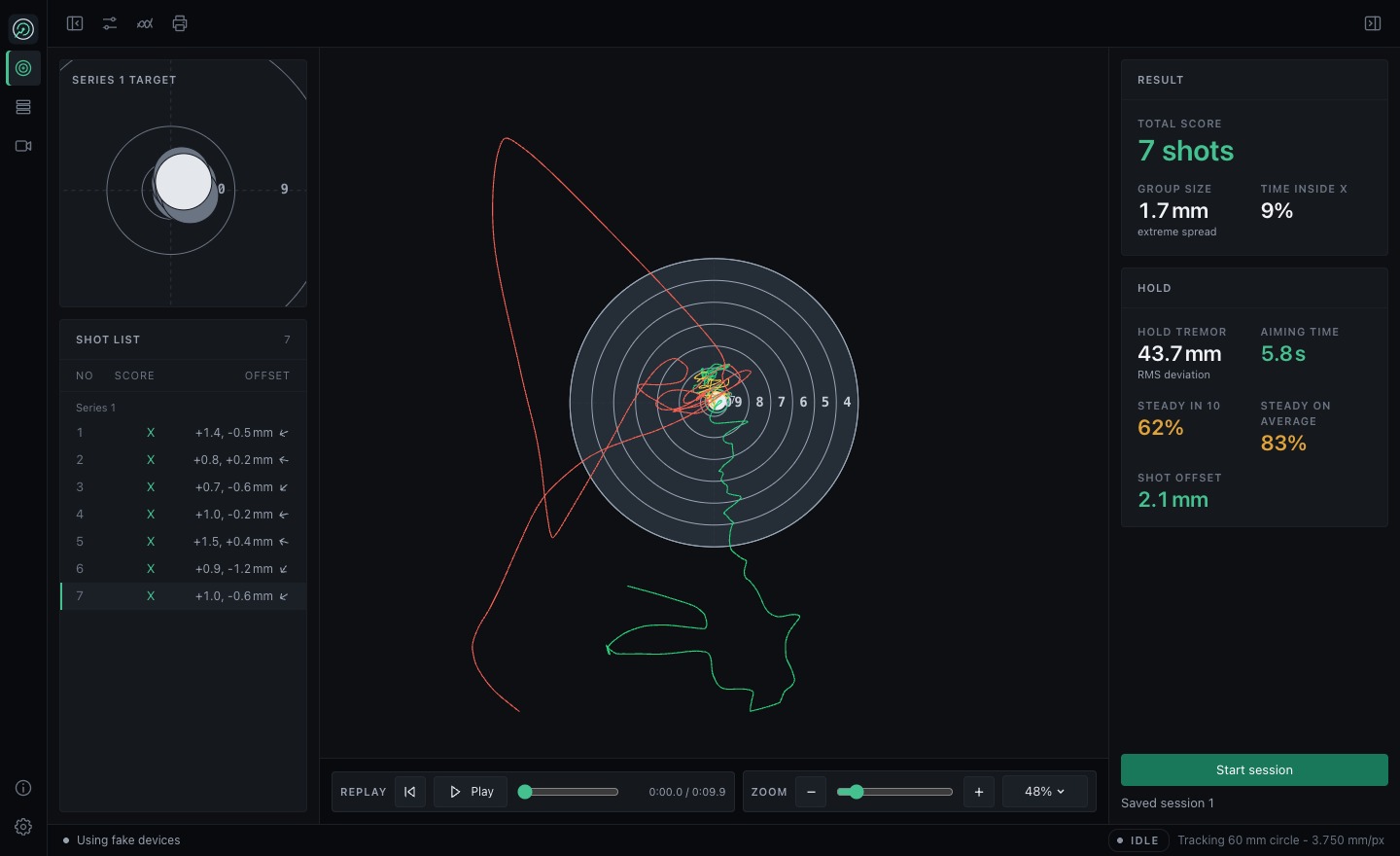
A camera mounted on your rifle tracks a printed black circle. A microphone detects each shot, so you can review your hold, estimated shot position and follow-through, then save the session for later analysis.
Free and open source. Runs on Windows, macOS and Linux. Sessions stay on your computer, with no account or subscription.
Documentation
- Installation
- Download a package for your operating system or run from source.
- Cameras and lenses
- Camera reports, lens choices and target framing.
- Mounting and alignment
- Position the camera, set the circle diameter and zero the trace.
- Recording sessions
- Record practice, sighters or a match.
- Shot replay
- Select a shot and inspect its trace with the playback controls.
- Troubleshooting
- Resolve camera, tracking and shot detection problems.
For saved sessions, see the session browser. The statistics guide covers group size and hold analysis.
Before your first session
You will need:
- A camera with a lens that keeps the tracking circle clearly in focus at your shooting distance, and a rigid mount on the rifle.
- A microphone near the firing point for shot detection.
- A printed target with a black circular aiming mark, or a marker sheet of known diameter.
Camera suitability depends on distance, lens choice, lighting and the number of pixels across the circle. Read tracking accuracy and limitations before choosing your equipment. Shot positions are estimated from the aim trace at audio detection. Scores are based on those positions rather than measured bullet holes.
- Mount and align the camera so the circle stays in view as you aim.
- Set the tracking circle diameter to match the printed circle. This is the measurement used to convert pixels into millimetres.
- Select the target face for scoring, then hold on the target centre and use Zero on aim.
- Adjust microphone sensitivity, check that a shot is detected, then start a session to record your practice.
Follow the full setup guide for alignment and checks.
Inspect a shot trace
Select a shot in the session overview or history to replay the recorded aim movement before and after it. Collapse either side pane to give the trace more space.